This tab allows you to provide your employer with information regarding your education and professional experience. Think of this page as your candidate profile description.
 | Since this information is vital for your employer when reviewing your application, it is essential to update the Education tab when you register as a substitute and whenever your situation changes. |
To do this, click your name in the top-left corner, select My profile, and then click the Education tab.

This page consists of three sections.
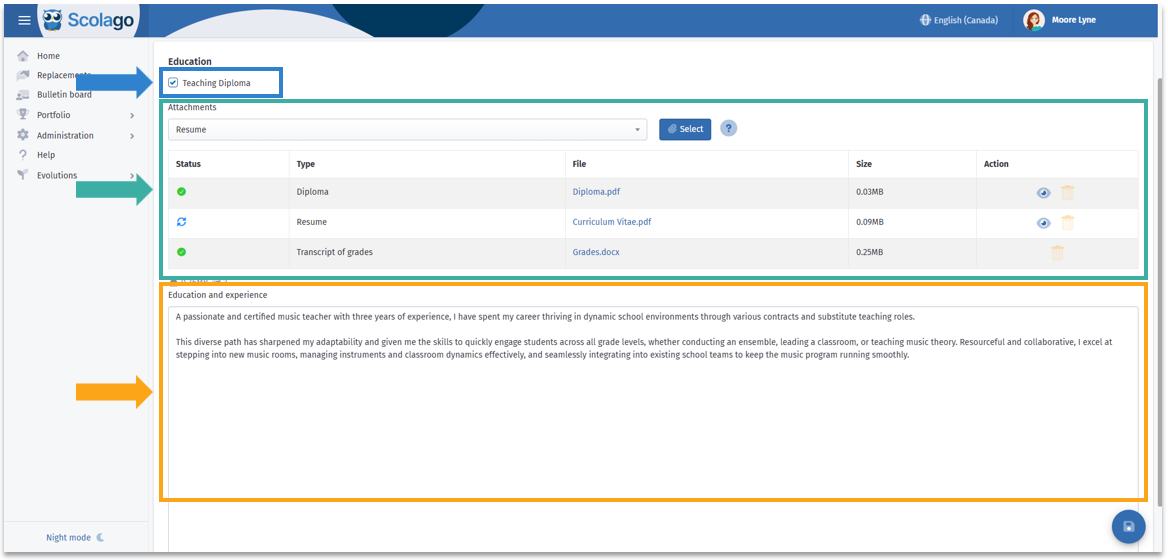

The first setting allows you to indicate whether you hold a teaching diploma. If you do, check the box.
 The second section, Attachments, enables you to add all relevant documents for your candidacy. From the drop-down menu, select the appropriate document type, then select your desired file.
 | In the Status column, a new document will display this icon. |
 | In the Status column, the arrows icon will change to this one once you have saved your changes. |
 | In the Action column, if the document type allows, you can view it by clicking the eye icon. |
 | In the Action column, you can delete an uploaded document by clicking the trash can icon. |
Please note that the accepted file formats are: .docx, .odt, .rtf, .txt, .xlsx, .ods, .pptx, .odp, .pdf, .gif, .jpg, .jpeg, .png, .tiff, and .zip. If you attempt to upload an unsupported file, a warning message will appear in the top-right corner of the page.

The final section, Education and experience, is a free-text field with no character limit. This allows you to include any additional information regarding your application.
Once you have finished making your changes, be sure to save them. To do so, you can use either the Save button at the top left or the floppy disk icon at the bottom right. When saving, you can also request a profile review from your administrator, which may be helpful.
 | To learn more about this option, refer to the following article: All - How to notify my administrator that I have made changes to my profile? |
Please note that if you accidentally try to leave the page without saving, an alert will appear asking if you want to proceed without saving your changes.

If needed, here is an explanatory video covering the information provided above: Video: Substitute - How can I detail my profile with my experience and education?.
Was this article helpful?
That’s Great!
Thank you for your feedback
Sorry! We couldn't be helpful
Thank you for your feedback
Feedback sent
We appreciate your effort and will try to fix the article