To access the My establishments module, you have two options:
1. By clicking on My profile, then selecting the My establishments tab.
2. By clicking on Administration in the left menu, then selecting My establishments.
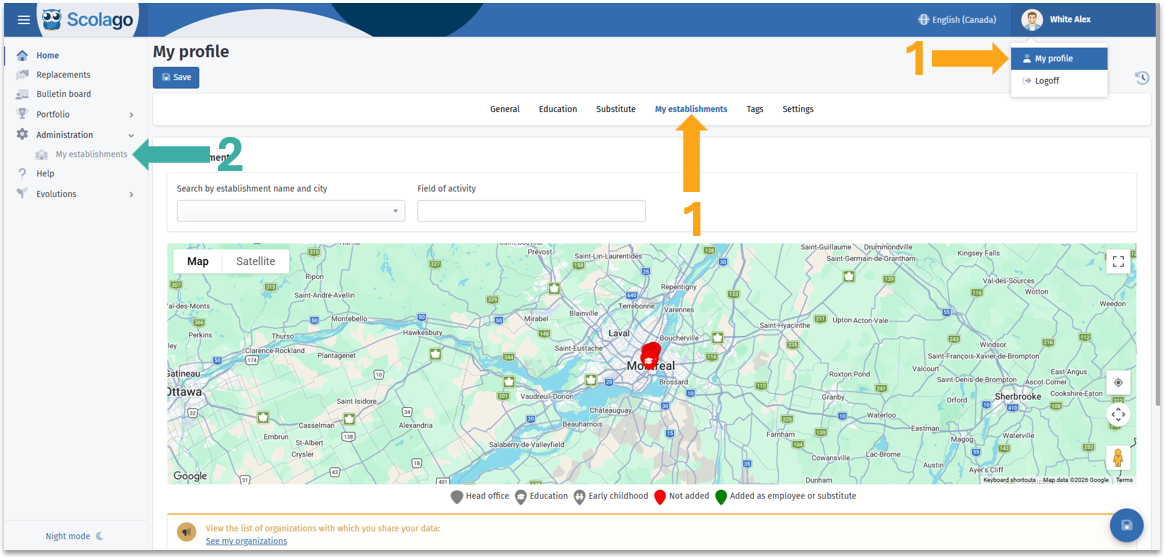

Below the map, a message helps you verify the organizations with which you share your data, meaning those where you are registered as an employee or substitute. If an organization appears there by mistake, simply remove that organization’s establishment from your profile using the list below.

If you wish to view all establishments where you are a substitute and/or employee, make sure both filter fields are empty and scroll to the bottom of the page to view the complete table.
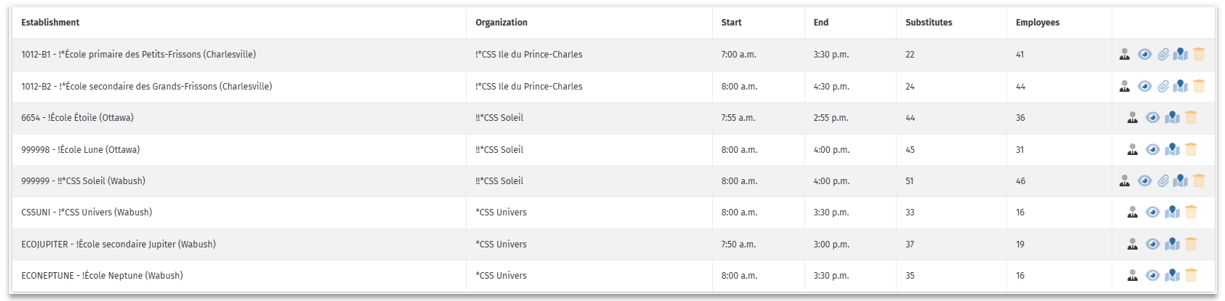
 | This icon will only appear if you are registered as an employee.
| ||
 | This icon will only appear if you are registered as a substitute.
| ||
 | The eye icon allows you to access the establishment's details. | ||
 | The paperclip icon means a document is available for download in the establishment's details. | ||
 | By clicking on the map icon, the map will move to the geographic location of this site, giving you access to options for adding or removing this location from your profile. | ||
 | The trash icon allows you to remove yourself from this location, whether you are registered as an employee, a substitute, or both.
|



By clicking on the eye icon, a page will open with general information as well as the clientele and specialties of this establishment. At the bottom of the first tab, you can download the attachment uploaded by the establishment.
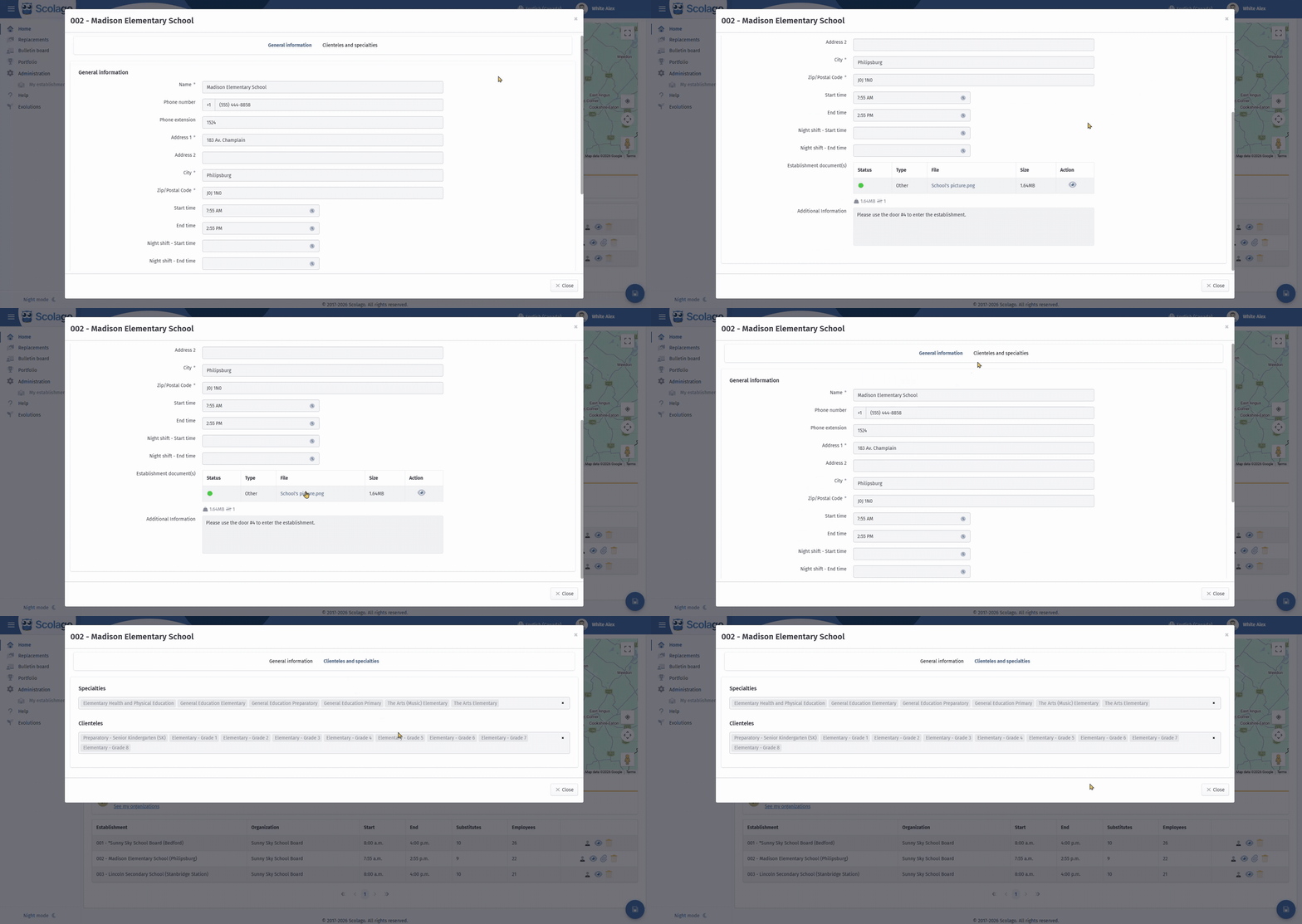

If desired, you can watch this video summarizing the information provided: Video: All - How to access the details about one of your establishments?
Was this article helpful?
That’s Great!
Thank you for your feedback
Sorry! We couldn't be helpful
Thank you for your feedback
Feedback sent
We appreciate your effort and will try to fix the article