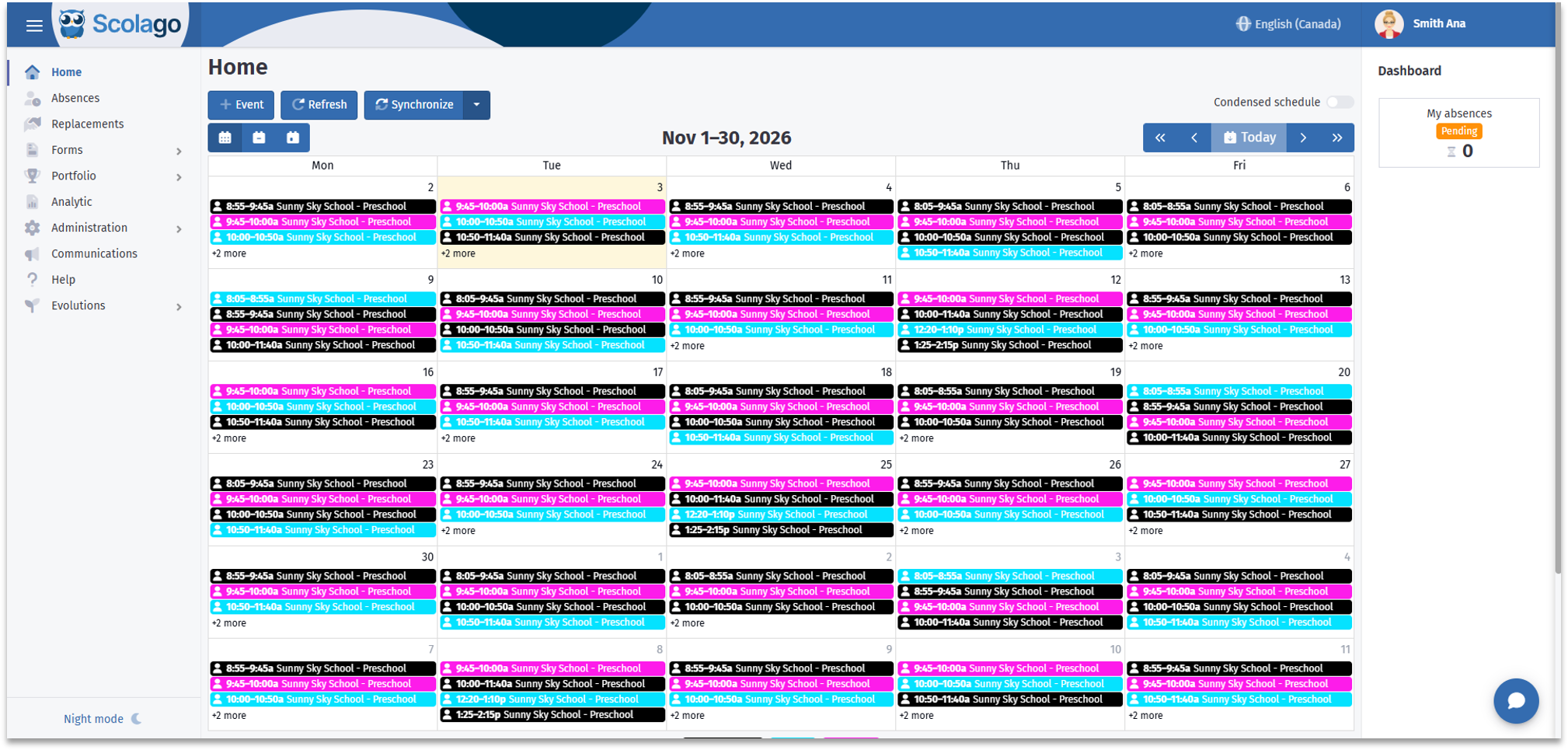
 |  |
In addition to giving you an overview of your schedule, the Home module offers several other options.
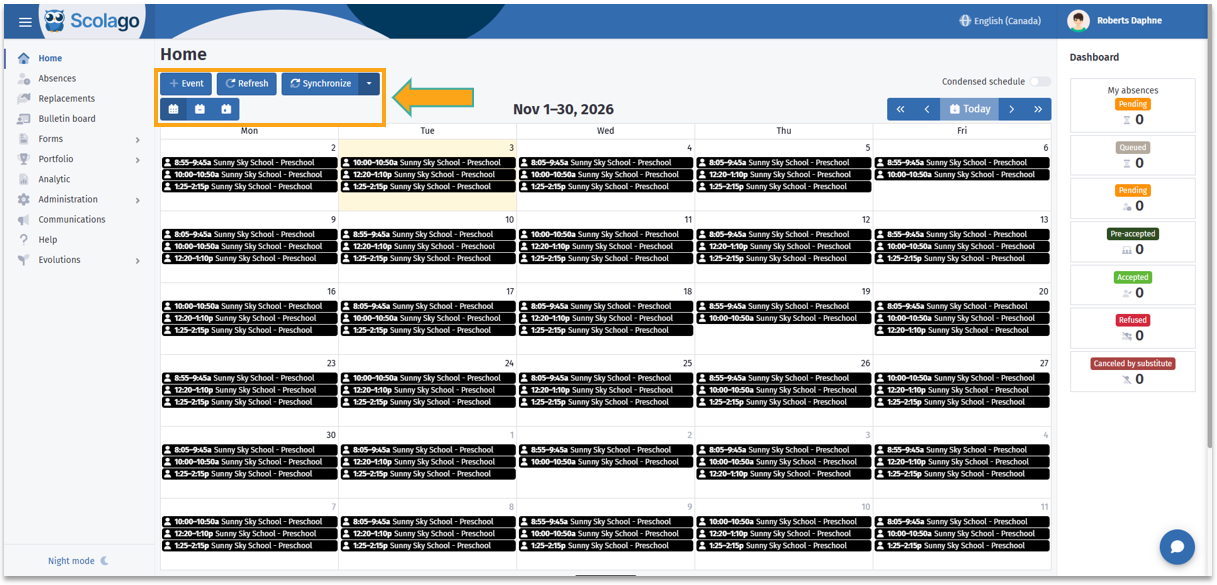
First, in the top left corner, you'll find the following buttons:
 | Personal events let you leave yourself a note or block off your availability for the duration of the event.
| ||||
 | This button lets you refresh the module to see anything new since you opened the page, such as new replacement offers. | ||||
 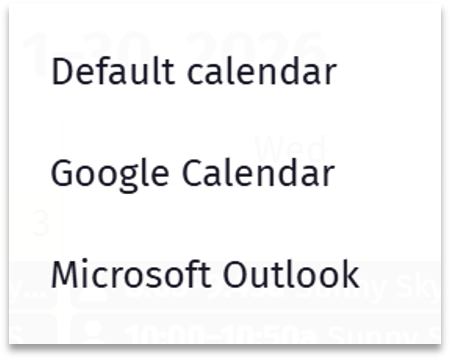 | You can also sync your Scolago schedule with your personal calendar. Using the Sync button, all the items you see in your Home module will be exported to the external calendar of your choice. Please note that the sync only works one way: from Scolago → personal calendar.
| ||||
 | These three buttons let you switch the Home module between monthly, weekly, and daily views. By default, it opens in the monthly view. |



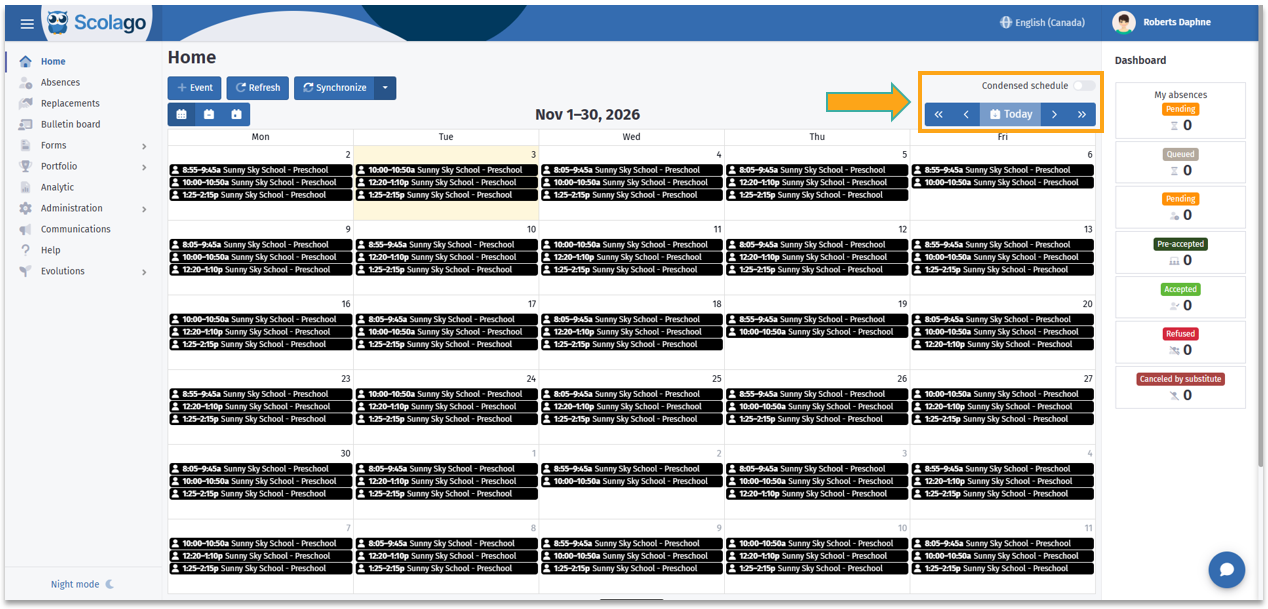
Next, in the top right corner, you'll find the following buttons:
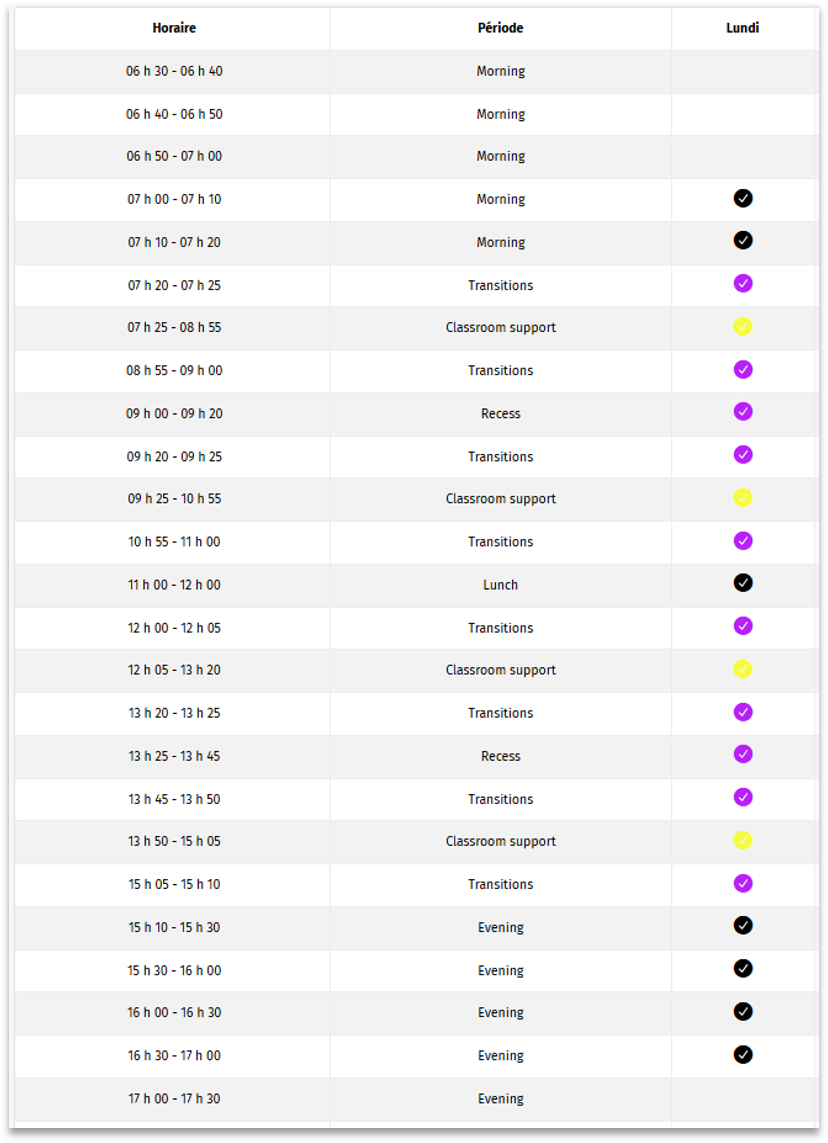
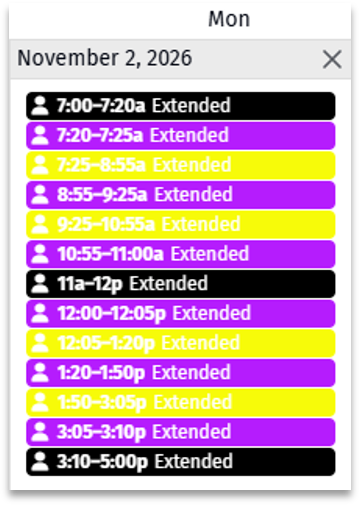
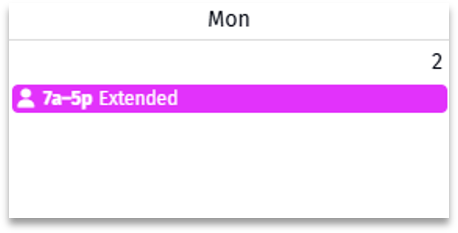
 | By default, this toggle is turned off: the Home calendar shows each task in your employee schedule. To keep the view uncluttered, consecutive periods with the same task are grouped together and displayed in the color chosen by your organization. When you turn this toggle on, all consecutive checked periods in your employee schedule are grouped together, regardless of their task, and displayed in pink. | |||||
Here's an example of how an employee's schedule is displayed:
| ||||||
 | These buttons let you move from one month, week, or day to the next, depending on the selected view. Click Today to jump straight back to the period that includes today's date. |


  Below the calendar, a legend explains the colors of the different events you may see. Some of them are clickable: the expense reimbursement statuses. Click an expense reimbursement status in the legend to show or hide that information in your calendar. When several expenses or trips are linked to the same reimbursement, only the first expense in the claim is displayed in your Home calendar. |
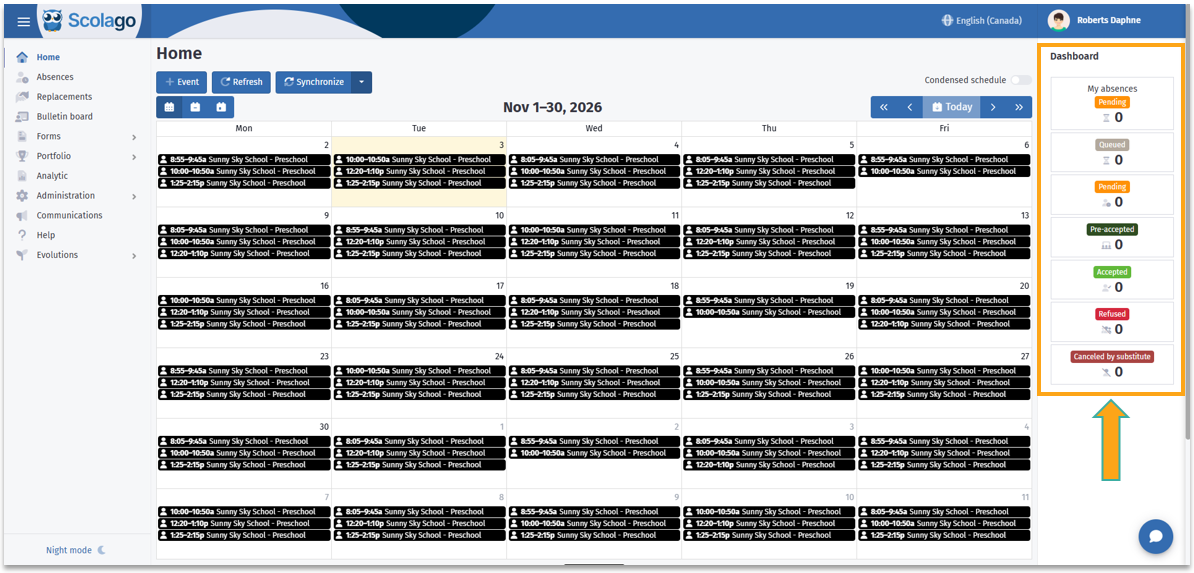
On the right side of the Home module, the Dashboard gives every Scolago user a summary of what's happening in their account, their organization, or both. The information shown on the Dashboard varies depending on each user's role in the platform (substitute, dispatcher, manager, etc.).
Here's what each user sees on their Dashboard, depending on their role.
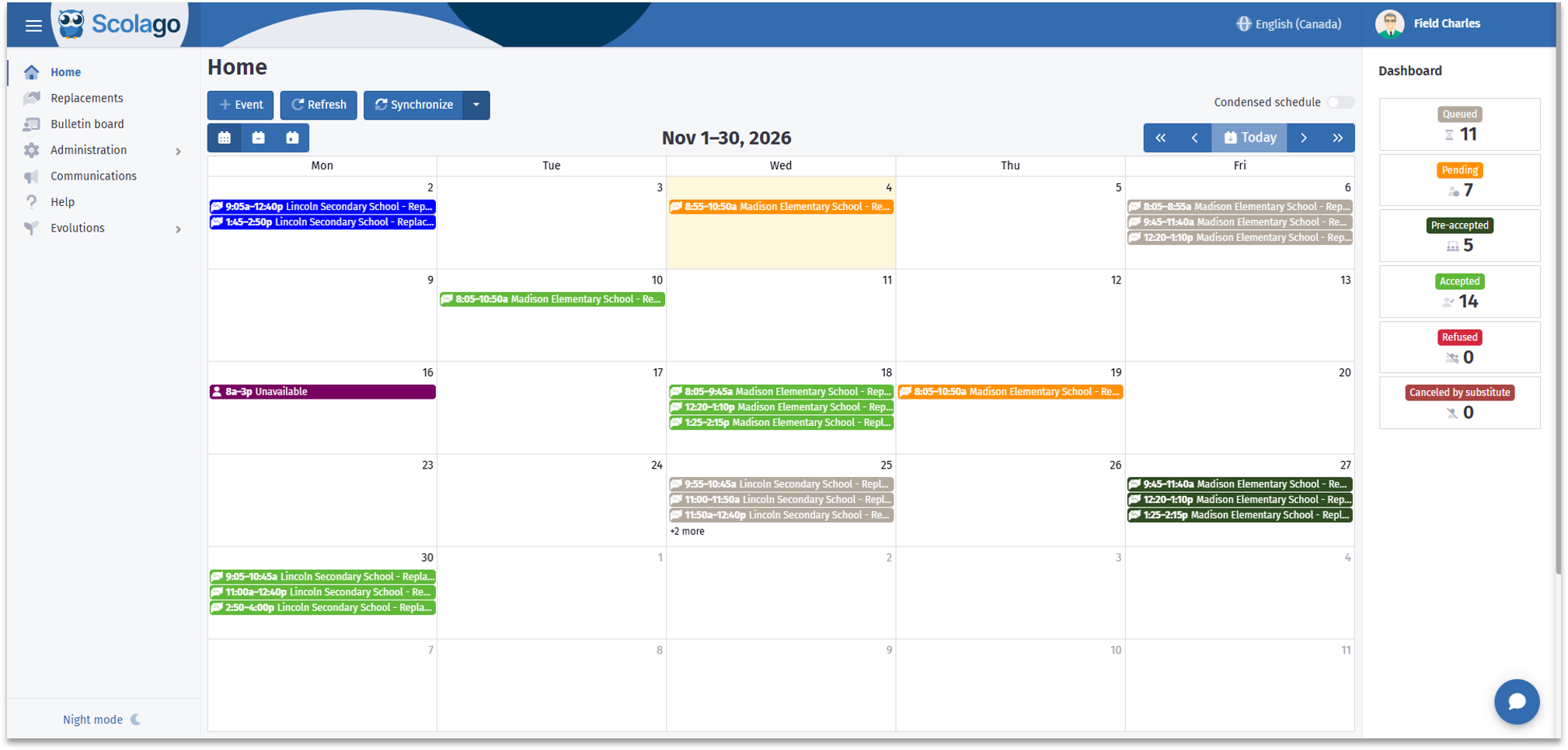
Substitute |

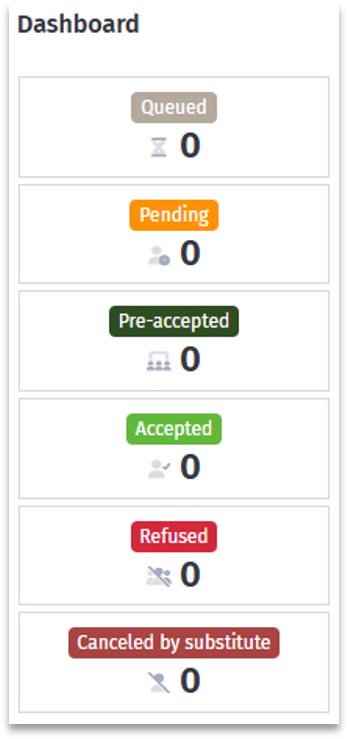 | On their Dashboard, substitutes see the number of replacement periods in their account, from today (inclusive) onward, with the following statuses: Queued, Pending, Pre-accepted, Accepted, Refused, and Cancelled by substitute.
| |||
Note that the Dashboard counts periods, not replacement offers. For example, if one offer includes 4 periods (the substitute accepts all of them by accepting the offer), the Dashboard will show "4," even though it's a single offer. | 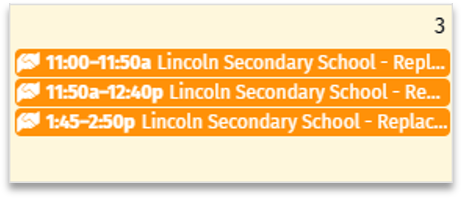 | |||

Employee |
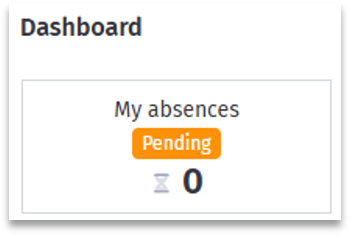 | Employees with the Absence authorized see how many of their own absences, from today (inclusive) onward, are awaiting a manager's approval. |
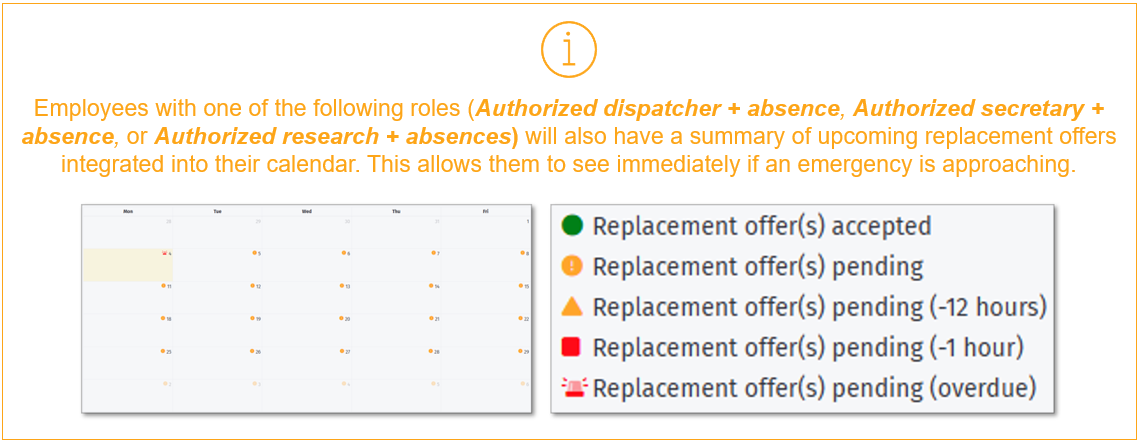
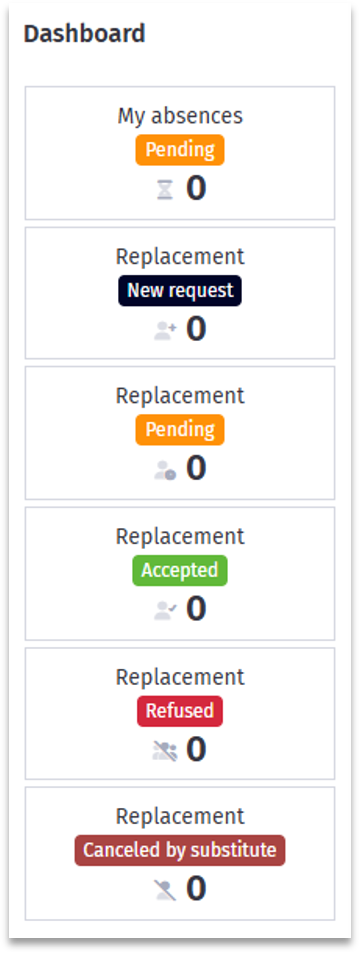 | Employees with the Authorized dispatcher + absence, Authorized secretary + absence, or Authorized search + absence role see how many of their own absences, from today (inclusive) onward, are awaiting a manager's approval. They also see how many replacements, from today (inclusive) onward and across all their organizations combined, have the following statuses: New request, Pending, Accepted, Refused, and Cancelled by substitute. Note that if the automatic schedule is used, each period counts as a separate replacement. Example: A secretary has the Authorized secretary + absence role in 3 establishments in Scolago. The data shown on her Dashboard is therefore a combined total for all 3 establishments. |
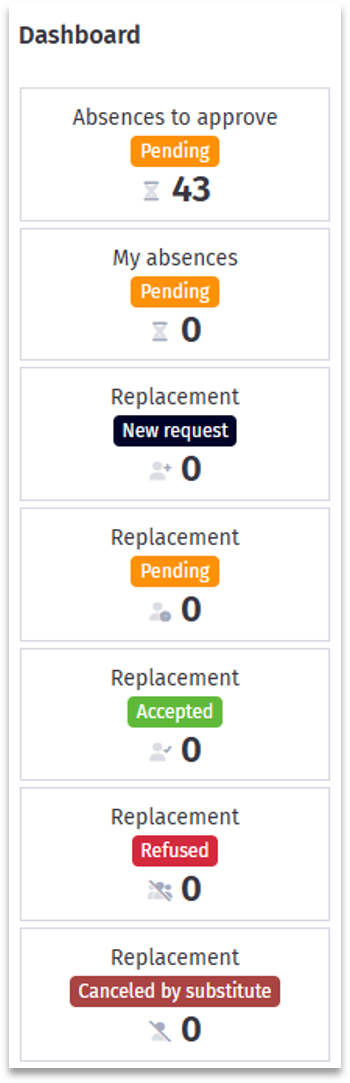 | Employees with the Authorized read + absence (establishment manager) role see how many of their staff's absences, from today (inclusive) onward, they need to approve. They only approve absences for which they have been selected as the approving manager. They also see how many of their own absences, from today (inclusive) onward, are awaiting a manager's approval. In addition, they see how many replacements, from today (inclusive) onward and across all their organizations combined, have the following statuses: New request, Pending, Accepted, Refused, and Cancelled by substitute. Note that if the automatic schedule is used, each period counts as a separate replacement. Example: A manager has the Authorized read + absence (establishment manager) role in 3 establishments in Scolago. The data shown on their Dashboard is therefore a combined total for all 3 establishments. |
Was this article helpful?
That’s Great!
Thank you for your feedback
Sorry! We couldn't be helpful
Thank you for your feedback
Feedback sent
We appreciate your effort and will try to fix the article