The Replacements module is a central tool for managing your replacements. It lets you view past and upcoming replacement offers. Unlike the Home module, it provides much more detail and lets you filter the list to display only the offers you want.
 Filtering Options Filtering Options |
By default, the board displays remplacement offers starting from today's date. However, you can adjust the filters to view all remplacements associated with your account.
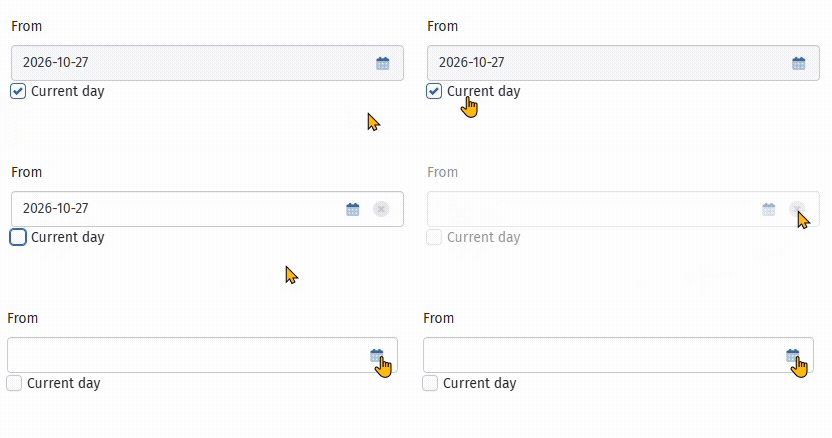 | To view all past and future remplacements, uncheck the Current day box and click the X symbol next to the date to remove the date filter. |
You can also filter remplacements by Establishment, Status, and Dates.
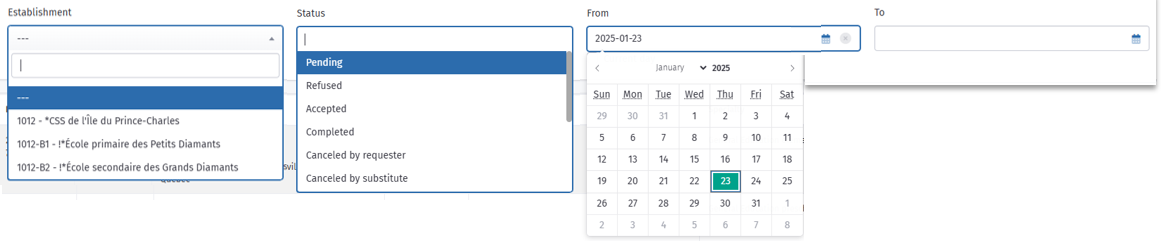
For the Establishment filter, two options are available:
- All MY establishments: Displays all replacements for all establishments within the organizations where you are authorized;
- All MY establishments from this organization: Displays the replacements for all establishments belonging only to the organization to which the selected establishment is linked.
If you do not check either of these two boxes, only the replacements for the selected establishment will be displayed.

 Table Columns Explained Table Columns Explained |
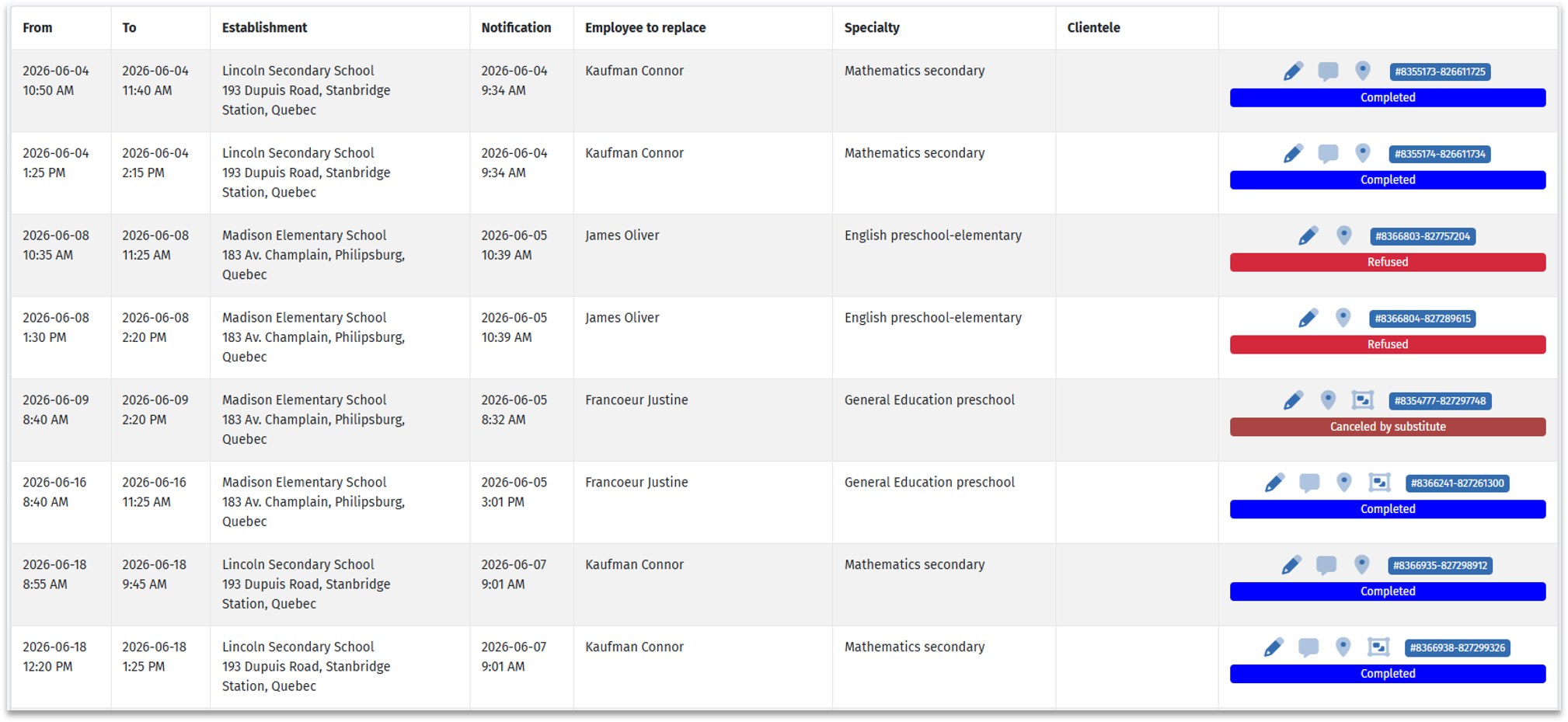
Additionally, each column provides details about your remplacements:
- Start and end date and time of the remplacement;
- Name of the establishment;
- Date and time the notification for the remplacement offer was received;
- Name of the employee being replaced (if applicable);
- Specialty and target clientele
 | For a detailed demonstration, watch this video: Video: All - How to use the "Replacements" module? |
| Meaning of the Icons |
The icons present in the module facilitate the management of your absences by allowing you to perform various actions or obtain specific information.
Here is what each icon represents:
 | By clicking on this icon, you will access the details of this request. |
 | This icon allows you to add a comment to a replacement with the Completed status, particularly to add details regarding the replacement performed. |
 | By clicking on this icon, a window will open to display the history of status changes for your request. |
 | This icon allows you to display the information related to the location associated with the replacement. |
 | This icon is displayed only on replacement requests created without an employee schedule. Its red color indicates that the hours entered have not yet been validated by the payroll manager. |
 | When a replacement is submitted without an employee schedule, the previous icon will turn green as soon as the hours entered have been validated by the payroll manager. |
 | If this icon is displayed on one of your requests, it indicates that your request contains multiple absence periods. |
 | This number is unique to each request and makes it easy to identify a replacement. It is particularly useful if you need to discuss it with your administrator or our support team. |
 Explanation of Replacement Statuses Explanation of Replacement Statuses |
Only certain statuses are displayed in the table by default, to keep your view uncluttered and show only relevant offers. By default, you will see offers with the following statuses: Queued, Pending, Pre-accepted, Accepted, Refused, Canceled by substitute, and Completed.
Offers with the statuses Canceled by requester, Canceled by dispatcher, Expired, and Filled are not displayed right away, but remain available through the filtering options. This way, you can view all the offers the system initially sent to you.
 | For more details on offers with the Queued and Pre-accepted statuses, see the following article: Substitute - What is ''Pre-acceptance''? |
Here is a description of each status:
 | You are waiting for a replacement that may potentially be assigned to you in the future. |
 | You have received a replacement offer, and it is pending your acceptance or refusal. As long as the offer is pending, you can still accept or refuse it. |
 | You have pre-accepted an offer that was in queue. |
 | You accepted a replacement offer, or it was assigned to you. You are considered unavailable for the duration of this replacement. |
 | You have refused a replacement offer. |
 | You canceled an offer you had previously accepted. You are available again for the period covered by this offer. |
 | The dispatcher from your organization has canceled this offer. |
 | The replacement was canceled by the requester who initially published it. |
 | You have completed this replacement. |
 | The offer was not accepted by any substitute, and the replacement date has now passed. |
 | The offer has been filled either internally or by another substitute. |
Was this article helpful?
That’s Great!
Thank you for your feedback
Sorry! We couldn't be helpful
Thank you for your feedback
Feedback sent
We appreciate your effort and will try to fix the article