The Absences module provides a comprehensive view of all the absence requests you have submitted. You can review the list of your absences, access the details of each request, and check their status.
 Main features Main features |

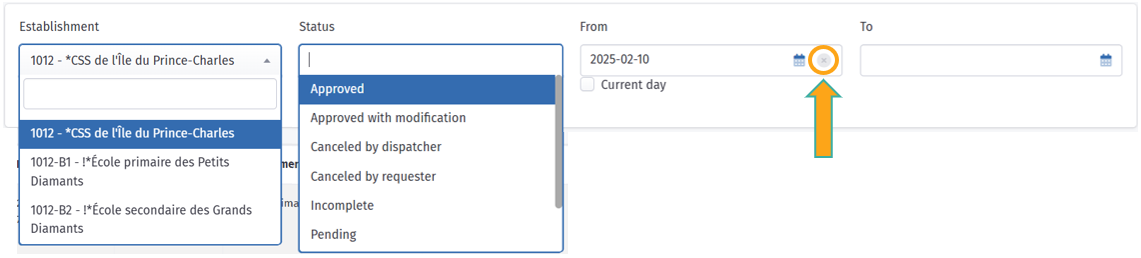
To better manage and review your absence requests, the module offers several filtering options to help you quickly find relevant information. You can filter your absences in three main ways:
- By establishment: View only the absences linked to a specific establishment. This is especially useful if you work in multiple establishments and want to check absences for each one separately.
- By status: Sort your requests based on their status.
- By date: Select a specific period to view absences within a given date range. To choose dates other than the current day, make sure to uncheck the Current day box and click the small X.
 Informations disponibles dans le tableau Informations disponibles dans le tableau |
The table displays the key details for each of your absence requests, specifically:
- Start date and time;
- End date and time;
- Establishment;
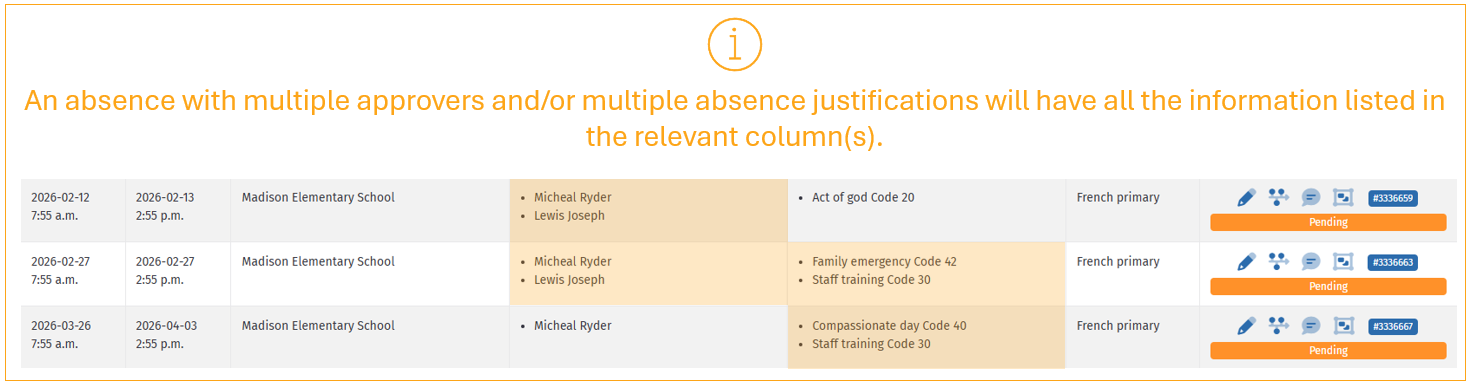
- Approver, if applicable;
- Absence justification; and
- Specialty.
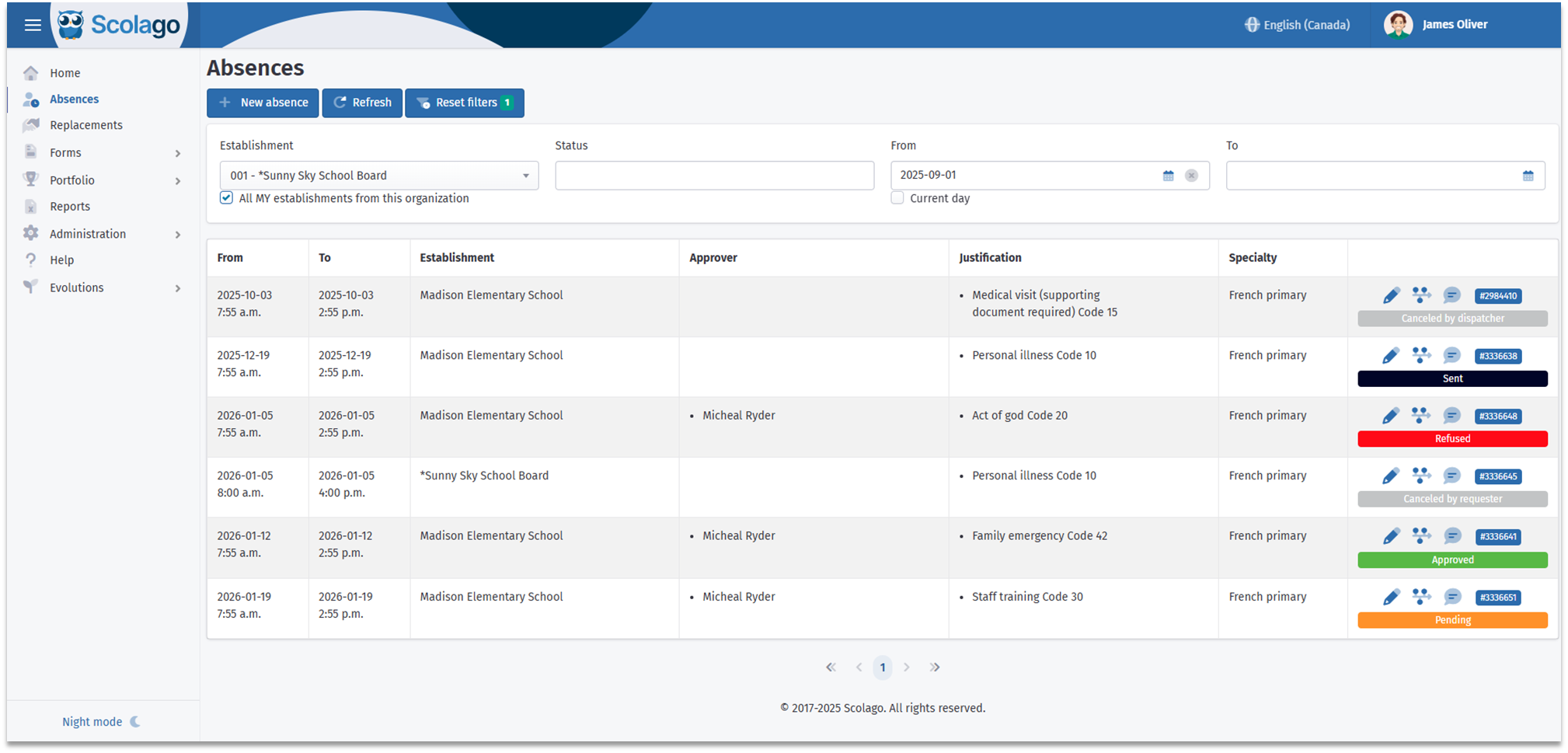
The last column displays your request status along with several icons. These are explained below.
| Meaning of statuses |
Each absence request is assigned a status, allowing you to track its progress:
 | This is an absence declaration that does not require approval. |
 | The request is pending your manager's* approval. |
 | The request has been approved by your manager*. |
 | This is an absence declaration approved by your manager* after making a change. |
 | Your absence request has been refused by your manager*. |
 | The absence has been approved by your manager*, but a required supporting document is missing for the approval to be complete. |
 | The absence has been cancelled by the person who originally requested it. |
 | The absence has been cancelled by your establishment's dispatcher or by your manager*. |
* Depending on the setting of the selected absence justification, approval may be granted by your manager, by the human resources department, or by both.
 Meaning of the icons Meaning of the icons |
The icons in the module make it easier to manage your absences by allowing you to perform various actions or obtain specific information.
Here is what each icon represents:
 | By clicking on this icon, you will access the details of this request. |
 | If this icon is displayed on one of your requests, it indicates that your absence does not require a replacement. |
 | By clicking on this icon, a window will open to display the history of status changes for your request. |
 | The bubble icon lets you view and leave notes related to your absence. In the absence declaration, this icon is linked to the Internal note field. As soon as at least one note is left, by you or by someone else, a number will indicate how many notes have been submitted. |
 | This icon only appears on absence requests generated without an employee schedule. Its red color indicates that the entered hours have not yet been validated by the payroll manager. |
 | If you declared an absence without having an employee schedule, the previous icon will turn green as soon as the entered hours have been validated by the payroll manager. |
 | If this icon is displayed on one of your absences, it indicates that your request includes multiple absence periods. |
 | This icon only appears on absence requests that include a supporting document, whether or not it is required for approval. |
 | This number is unique to each request and makes it easy to identify an absence. It is especially useful if you need to discuss it with your administrator or our support team. |

Watch this video to review the concept of the Absences module: Video: Employe - What does the ''Absences'' module look like?.
Was this article helpful?
That’s Great!
Thank you for your feedback
Sorry! We couldn't be helpful
Thank you for your feedback
Feedback sent
We appreciate your effort and will try to fix the article