The Trainings module allows you to easily view and manage all available training sessions while accessing detailed information about them. Here’s how to effectively use the Catalog tab to explore the options available to you.
 |
The catalog is divided in two: Trainings and Asynchronous trainings.
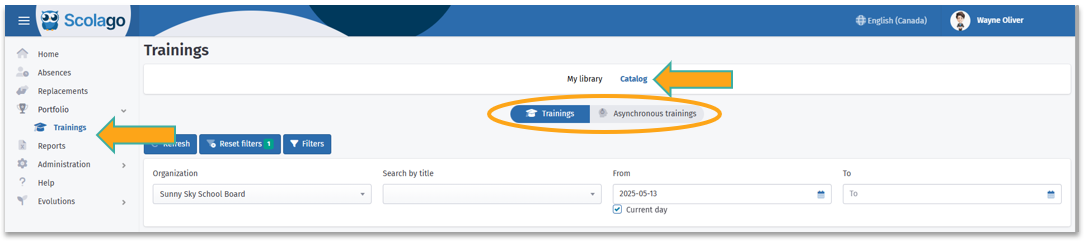
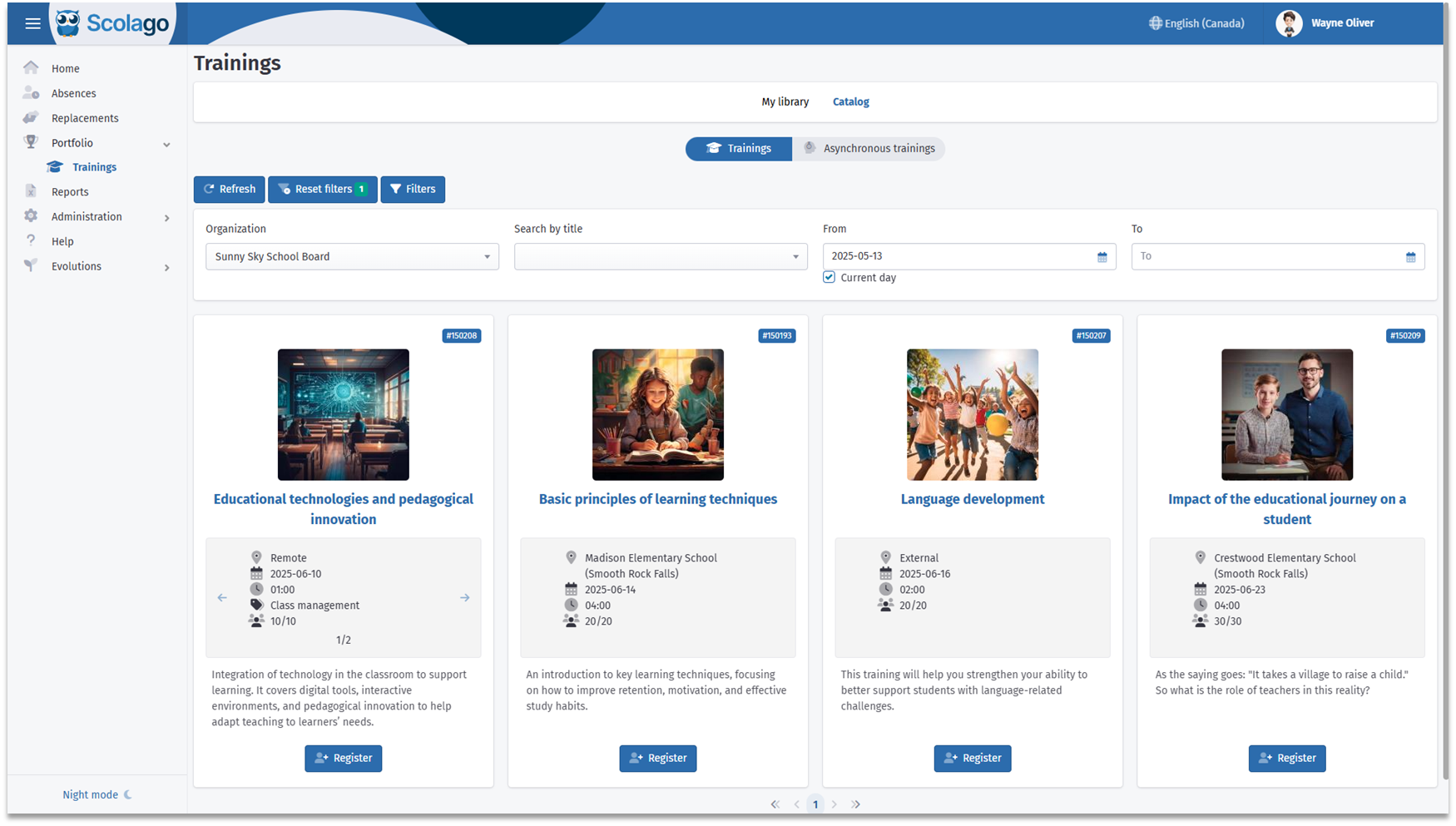
In the first section, trainings are presented in a card form. Each training is accompanied by essential information, such as:
- Training title: by clicking on this, you can view the details of the displayed training;
- Training location: in-person or online;
- Date and time: the days and hours when the training takes place;
- Theme: the category or field to which the training belongs (for example: classroom management, health, etc.);
- Available spots: number of participants already registered and the maximum number of spots;
- Summary : a few words can outline the main aspects of the training.
If the training has multiple sessions, all the details for these will be indicated using arrows that allow you to change sessions. Note that this carousel only shows you active sessions; if some have been cancelled, you will need to click on the training title to view the session details.
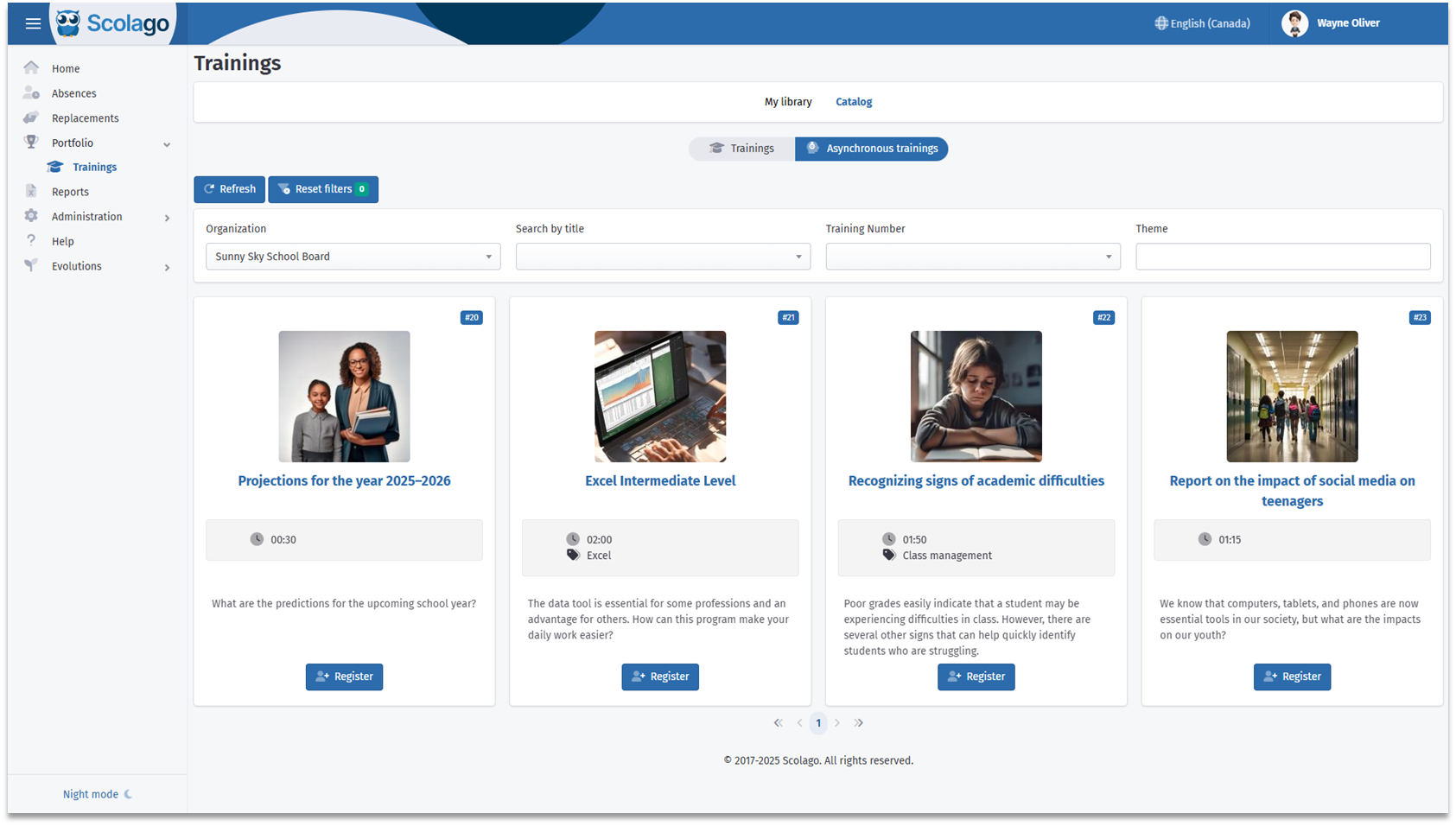
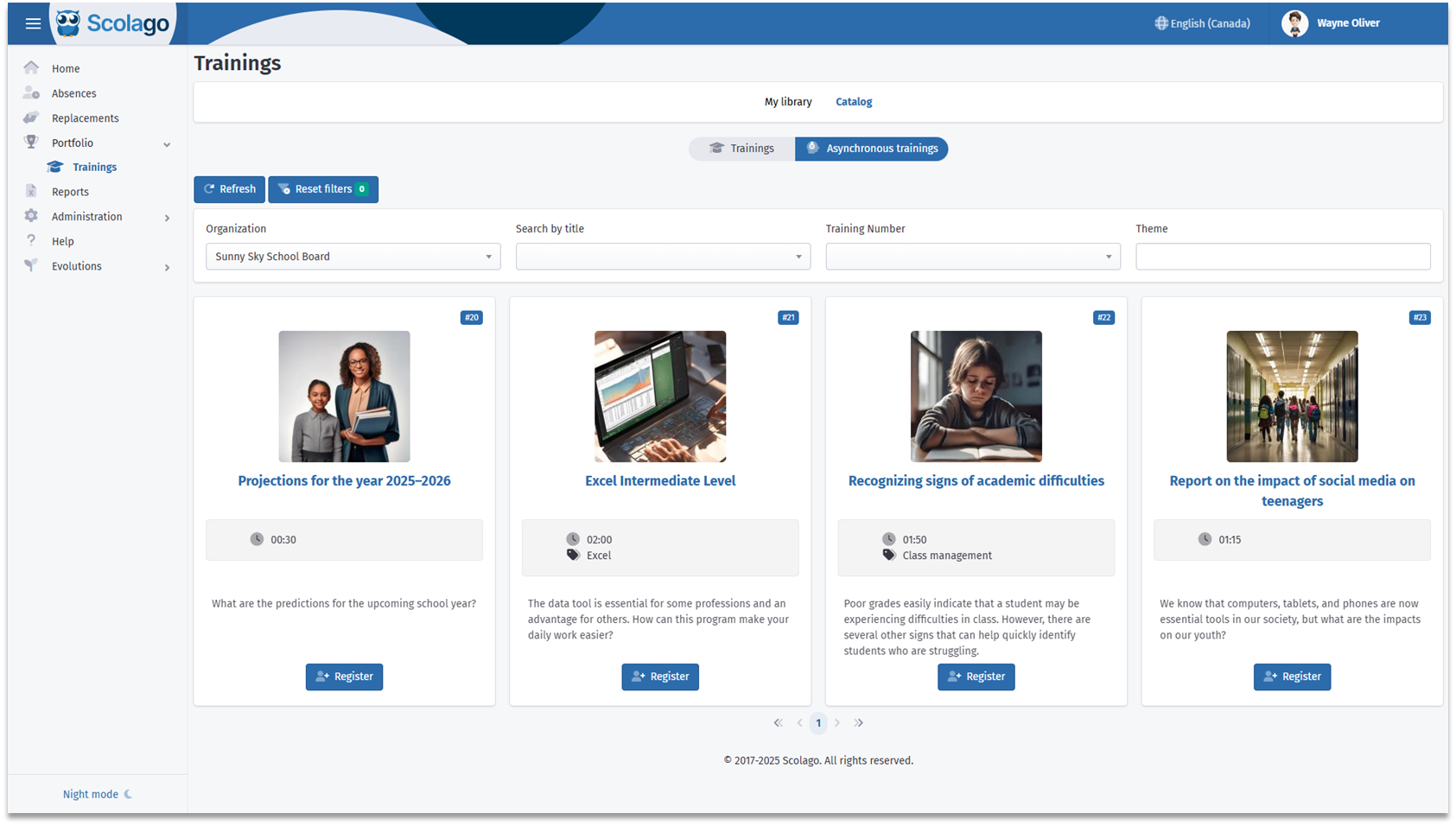
The asynchronous trainings section is very similar. Each training card also includes key information, such as:
Training title: by clicking on it, you can view the full details of the training;
Duration: the number of minutes the video lasts;
Theme: the category or field the training falls under (e.g., classroom management, health, etc.);
Summary: a few words provide an overview of the training content.
In the Trainings and Asynchronous trainings sections, the trainings displayed in the table are sorted by date, from the closest to the furthest, in order to facilitate planning.
|
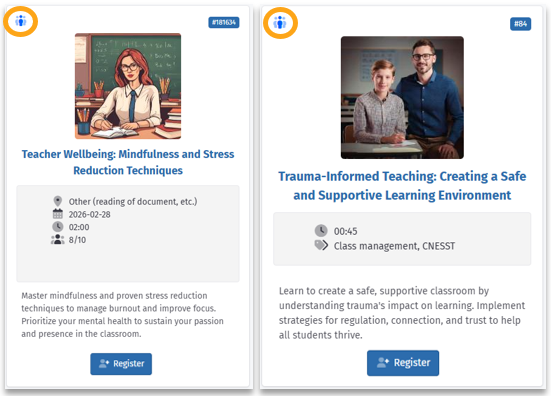
Whether it's in the Trainings or Asynchronous trainings section, you will notice a people icon in the upper left corner of the card. This icon indicates that it is a public training, and two options are possible:
It has been made public by your organization.
It comes from another organization and has been added to your organization's catalog.
By registering for it, you agree to share your email address with the managers of the Trainings module from the other organizations. This will allow them to contact you if necessary, strictly in connection with this training.
Please note that public training may also be hosted on Moodle. See the following section for more details.
|
Furthermore, in both the Training and asynchronous training sections, a person icon appears in the top-left corner of the course card. This identifies it as a Moodle course.
Depending on the selected format, your training may include in-person sessions, videoconferences, or be conducted exclusively on Moodle. We invite you to read the description carefully to understand all the required steps (lessons, quizzes, or meetings) to complete your path.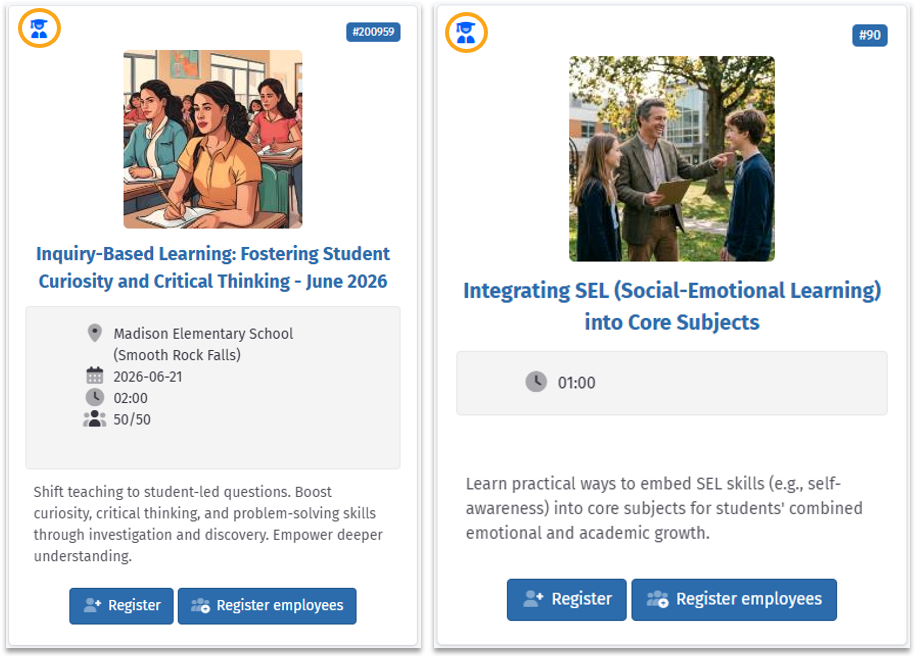
Please note that a Moodle training can also be a public training. Refer to the previous section for more details.
 Filter and search for trainings Filter and search for trainings |
To quickly find training that suits your needs, use the available search and filter tools:
At first glance, you can filter by organization name, search by training title, and by the date of the training.
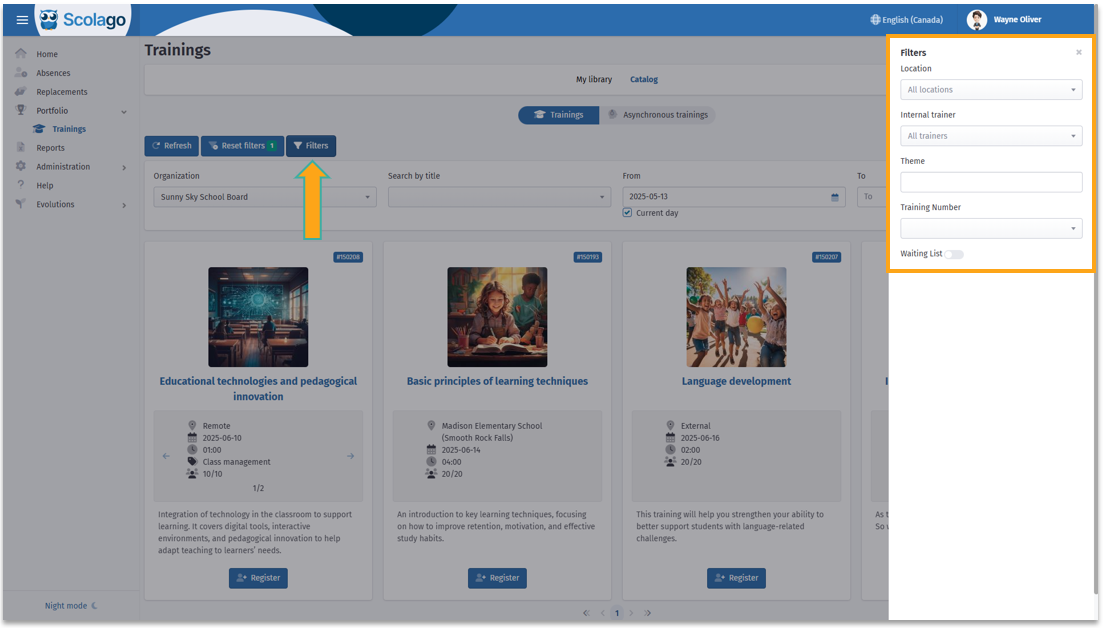
By clicking on the Filters button, you will access additional options, such as :
- Training location;
- Internal trainer name;
- Training theme;
- Topic;
- Waiting list: allowing you to filter only the training where you are on the waitlist.
Within the asynchronous trainings section, you can filter by organization name and search by training title, training number, or theme.
Was this article helpful?
That’s Great!
Thank you for your feedback
Sorry! We couldn't be helpful
Thank you for your feedback
Feedback sent
We appreciate your effort and will try to fix the article